How to Enable and Use Security Command Center (SCC) for Beginners
Cloud environments are growing rapidly, and so are security threats targeting cloud resources. Organizations need a centralized way to identify vulnerabilities, monitor assets, and respond to risks before they turn into security incidents. This is where Google Cloud Security Command Center, commonly known as SCC, becomes invaluable.
If you are new to Google Cloud, learning how to enable and use Security Command Center SCC for beginners is one of the best ways to strengthen your cloud security knowledge. SCC provides a unified dashboard that helps you discover assets, monitor security posture, and detect potential threats across your Google Cloud environment.
TLDR
Security Command Center is Google Cloud's centralized security and risk management platform. You can enable it from the Google Cloud Console, configure permissions, and use its dashboard to monitor assets, detect vulnerabilities, and improve your overall security posture.
What is Security Command Center (SCC)
Security Command Center is a centralized security and risk management platform built into Google Cloud. It continuously scans your projects for misconfigurations, vulnerabilities, and suspicious activity, then organizes everything into one set of findings.
Instead of checking each service individually, Google Cloud SCC pulls signals from across your environment into one place, including exposed APIs, weak IAM permissions, and unusual access patterns. For beginners, that consolidation alone saves a lot of time.
Why beginners should learn SCC
Most people learning Google Cloud focus on getting applications deployed, and security gets pushed aside. Small misconfigurations rarely announce themselves loudly. They just sit there until something exploits them.
Learning SCC early gives you a structured way to think about cloud security monitoring instead of guessing what might be wrong. It also teaches you to read real findings tied to real resources, which builds intuition faster than security theory alone.
Prerequisites before enabling SCC
Before starting your Security Command Center setup, make sure a few things are in place. Skipping this step often leads to permission errors that confuse first-time users.
You need an active Google Cloud project, ideally with an organization resource if you plan to use Premium tier later. You also need an account with sufficient IAM permissions, typically Security Center Admin or Organization Administrator, depending on the scope.
Step-by-step guide to enable Security Command Center
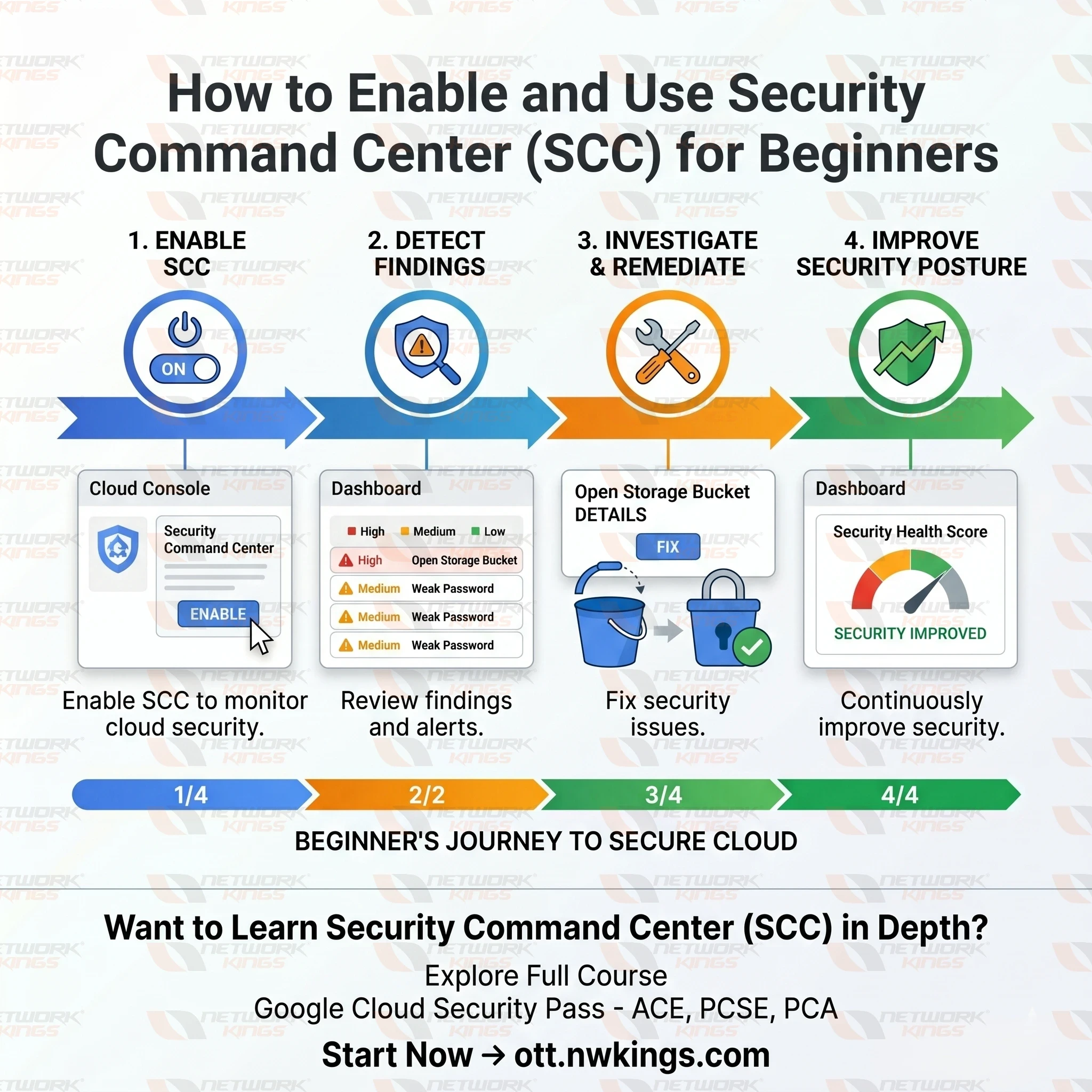
Follow these steps to get SCC running in your environment.
Access the Google Cloud Console and sign in with an account that has the necessary permissions.
Select an existing project or create a new one specifically for testing security tools.
Enable the required APIs, including the Security Command Center API, through the API Library.
Activate SCC by searching for Security Command Center in the console menu and choosing Standard or Premium tier.
Configure permissions by assigning the correct IAM roles to the users or service accounts that will manage findings.
Access Google Cloud Console
Log in using an account with the necessary permissions. If you work within an organization, confirm you are operating at the right level, since SCC behaves differently at the project versus organization scope.
Select or create a project
Select an existing project to monitor, or create a fresh one so you can experiment without touching production resources.
Enable required APIs
Search for the Security Command Center API in the API Library and enable it. Some detectors rely on related APIs, so Google Cloud may prompt you to enable a few more automatically.
Activate SCC
Navigate to Security Command Center from the main menu and choose Standard or Premium tier. Standard is free and covers core detection, while Premium adds deeper vulnerability management and threat detection.
Configure permissions
Assign IAM roles carefully, giving access only to people who genuinely need to review or act on findings. Over-granting permissions here is a common beginner mistake that creates unnecessary risk.
How to use Security Command Center after enabling it
Once SCC is active, the real value comes from how you use it day to day.
Dashboard overview
The dashboard greets you with a summary of active findings, usually sorted by severity, giving an immediate sense of how your environment is doing.
Security findings
Each finding includes a description, the affected resource, and a severity rating. Clicking into it shows remediation guidance, helpful when you are still learning what a risk actually means.
Asset inventory
The asset inventory tab lists every resource SCC can see across your environment. This shows your real cloud footprint, not just the parts that currently have issues.
Risk prioritization
SCC ranks findings by severity, helping you decide what to fix first. Focus on critical and high severity items before moving to lower priority ones.
Recommendations
Many findings include direct recommendations, such as tightening a firewall rule or rotating a credential. Following these consistently is one of the simplest ways to improve your security posture management over time.
Common mistakes beginners should avoid
A few habits tend to trip up new SCC users repeatedly.
Ignoring low-severity findings, when several small issues can combine into a larger risk.
Enabling SCC once and never returning to review new findings regularly.
Granting broad IAM roles just to simplify setup, which increases exposure unnecessarily.
Assuming Premium tier is required immediately, when Standard tier often covers early needs.
Best practices for using SCC effectively
Treat SCC as an ongoing process, not a one-time setup task. Reviewing your dashboard weekly, even briefly, catches problems before they escalate.
Pair SCC with notifications through email or Pub/Sub so critical findings reach you immediately. Tagging findings by project or team also keeps accountability clear when managing multiple environments.
Free Tier vs Premium Tier features
Choosing the right tier depends on your project size and risk tolerance. The table below breaks down the core differences.
Feature | Standard Tier | Premium Tier |
Cost | Free | Paid, based on usage |
Misconfiguration detection | Yes | Yes |
Vulnerability scanning | Limited | Advanced |
Threat detection | Basic | Extensive |
Compliance monitoring | No | Yes |
Best suited for | Small projects, beginners | Organizations with multiple projects |
Understanding how to enable and use Security Command Center (SCC) for beginners gives you a practical foundation for protecting your Google Cloud environment without years of security experience. Setup takes minutes, but the habits you build around reviewing findings are what matter long term.
Start with the Standard tier, get comfortable reading findings and asset inventory data, then decide if the Premium tier fits as your environment grows. From here, exploring IAM best practices or network security configurations is a natural next step toward a stronger Google Cloud security posture.
Frequently Asked Questions
Is Security Command Center free to use
Standard tier is included at no extra cost and covers core detection features. Premium tier adds pricing in exchange for deeper vulnerability management and compliance monitoring.
Do I need a Google Cloud organization to enable SCC
No, Standard tier works fine within a single project. Premium tier generally requires an organization resource to unlock its full feature set.
How often does SCC scan for vulnerabilities?
Scanning frequency depends on the detector type, with some running continuously and others on a periodic schedule. New findings can appear at different times rather than on one fixed cycle.
Can SCC automatically fix security issues?
SCC identifies and explains issues but does not apply fixes on its own in most cases. You will need to remediate findings manually or build automation around its recommendations.
Is SCC suitable for small businesses?
Yes, even small projects benefit from the Standard tier, since basic misconfigurations can happen regardless of company size. Starting early makes it easier to scale good security habits as the business grows.
What IAM roles are required for Security Command Center?
To manage SCC, users typically need roles such as Security Center Admin, Security Center Findings Viewer, or Organization Administrator, depending on their responsibilities.
What is the difference between Security Command Center Standard and Premium?
Standard offers core security monitoring and asset inventory, while Premium includes advanced threat detection, vulnerability scanning, and compliance monitoring.
Can Security Command Center monitor Kubernetes clusters?
Yes. SCC supports Google Kubernetes Engine (GKE) and helps detect vulnerabilities, misconfigurations, and security risks in Kubernetes workloads.
Does Security Command Center integrate with SIEM tools?
Yes. SCC integrates with SIEM platforms through APIs, Pub/Sub, and Cloud Logging, enabling centralized security monitoring and incident response.
Is Security Command Center suitable for enterprises?
Yes. SCC is built to secure enterprise-scale Google Cloud environments with centralized visibility, risk management, and advanced security features.

The founder of Network Kings, is a renowned Network Engineer with over 12 years of experience at top IT companies like TCS, Aricent, Apple, and Juniper Networks. Starting his journey through a YouTube channel in 2013, he has inspired thousands of students worldwide to build successful careers in networking and IT. His passion for teaching and simplifying complex technologies makes him one of the most admired mentors in the industry.