Palo Alto Troubleshooting Commands Every Network Engineer Should Know

In enterprise networks, firewall issues can quickly impact business operations, application availability, and security. Whether users are unable to access applications, VPN tunnels fail unexpectedly, or traffic does not match security policies, network engineers often need to diagnose problems quickly and accurately. This is where mastering Palo Alto Troubleshooting Commands becomes essential.
While the graphical user interface provides valuable visibility, experienced engineers frequently rely on the Palo Alto command-line interface to obtain real-time information, validate configurations, analyze traffic flows, and troubleshoot complex issues faster. Understanding the right CLI commands can significantly reduce troubleshooting time and improve operational efficiency.
This guide covers the most useful Palo Alto CLI commands every network engineer should know, along with practical use cases and troubleshooting scenarios.
Why CLI Troubleshooting Matters More Than the GUI
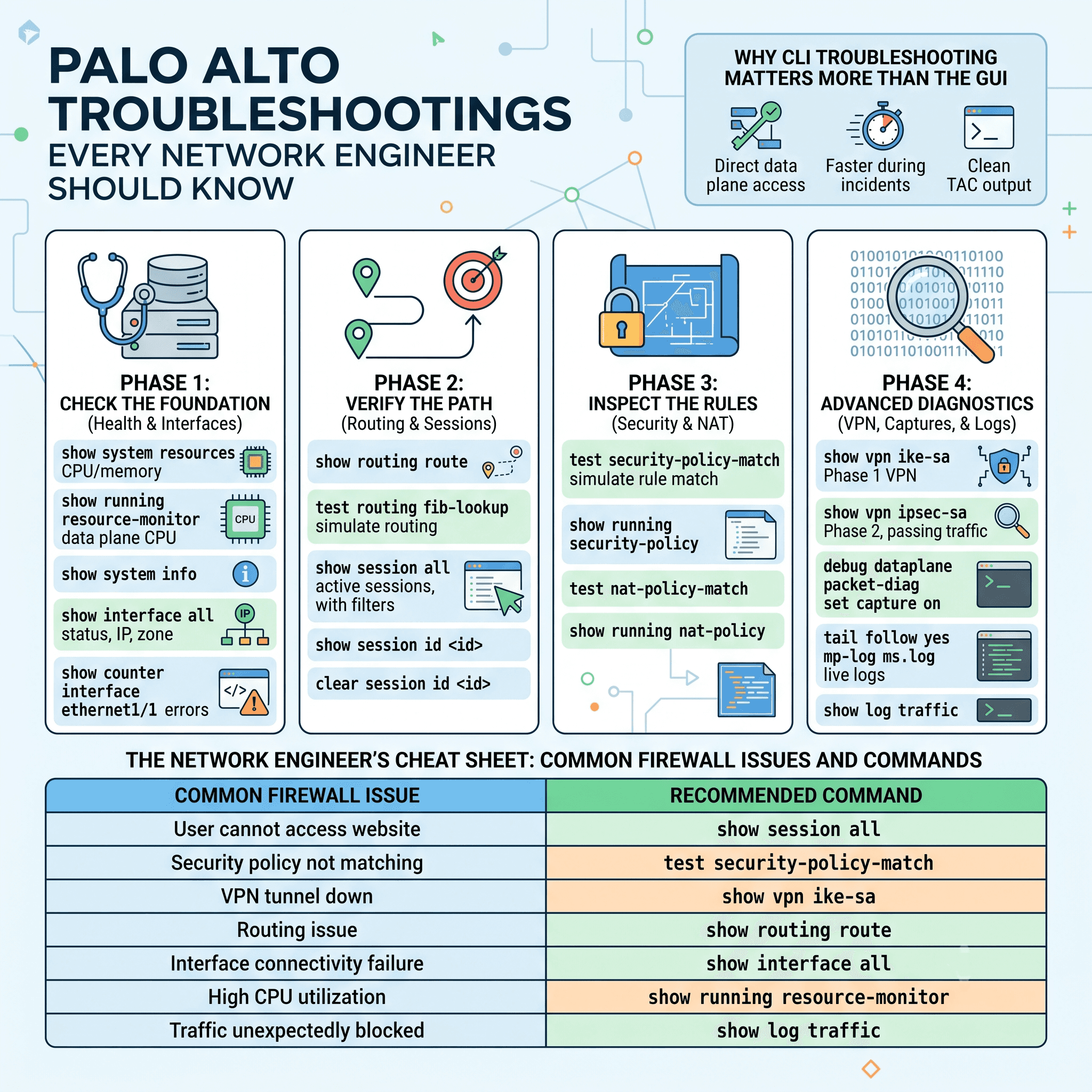
The GUI is great for policy configuration and reporting, but it hides low-level details like session flags and hardware counters. The command line interface gives direct access to the data plane in real time, is faster during an incident, and produces output that pastes cleanly into a TAC case. Palo Alto firewall troubleshooting through the CLI offers visibility that the GUI simply cannot match.
System Health Verification
Before diagnosing a specific problem, confirm the firewall itself is healthy, since a resource-starved device can mimic a network issue. show system info confirms PAN-OS version and management IP. show system resources checks the management plane CPU and memory, similar to Linux top. show running resource-monitor Shows data plane CPU per core. show system disk-space Confirms storage is not affecting logging or upgrades.
Interface Troubleshooting
Many connectivity issues trace back to interface-state or physical-layer problems. show interface all Displays the status, IP address, and zone for each interface. show interface ethernet1/1 Drills into a specific interface's counters and errors. show counter interface ethernet1/1 Reveals CRC errors and drops at the hardware level.
Routing Verification
Routing problems often masquerade as application issues, so verify the routing table early. show routing route Displays static, connected, and dynamic routes. show routing protocol bgp state Confirms BGP neighbor relationships are up. test routing fib-lookup Simulates how the firewall would route a specific destination, one of the most underused Palo Alto network troubleshooting commands available.
Session Troubleshooting
Session-level visibility is where Palo Alto troubleshooting commands really shine, since the firewall is fundamentally session-based. show session all Lists every active session. show session all filter source 10.1.1.5 destination 8.8.8.8 Narrows results to the flow you care about. show session id <id> Shows the matched rule, NAT translation, and flags for one session. clear session id <id> Forces a stale session to reset, common after a policy change.
Security Policy Troubleshooting
test security-policy-match With source zone, destination zone, IP, and port simulates exactly which rule will match traffic, making it one of the most valuable Palo Alto security policy troubleshooting commands available. show running security-policy Shows the compiled policy as enforced by the data plane. show counter global filter packet-filter yes Identifies packets dropped by policy or zone protection.
NAT Troubleshooting
test nat-policy-match confirms which NAT rule a flow will hit before it happens. show session all filter nat Filters active sessions with NAT translation applied. show running nat-policy Reviews the compiled NAT rule base. Palo Alto NAT troubleshooting benefits from comparing test output against the session table, since mismatches usually point to rule ordering.
VPN Troubleshooting
show vpn ike-sa Verifies Phase 1 negotiation succeeded. show vpn ipsec-sa Verifies Phase 2 and confirms the tunnel is passing traffic. show vpn flow Checks tunnel encryption and decryption counters. test vpn ike-sa gateway <gateway-name> Manually triggers negotiation, often the fastest way to reveal a Phase 1 mismatch.
Traffic Flow Analysis and Packet Capture
show session info Summarizes session table capacity. debug dataplane packet-diag set filter isolates specific traffic, set capture on begins the capture, and view-pcap Commands review results. Always run set capture off Afterward, since leaving debug commands running can affect performance.
Log Analysis
less mp-log ms.log Reviews management plane logs for configuration and system events. tail follow yes mp-log ms.log Watches log entries in real time. show log traffic Queries traffic logs directly from the CLI without loading the GUI.
Most Useful Palo Alto Troubleshooting Commands at a Glance
Command | Purpose | Troubleshooting Use Case |
show system resources | Displays the management plane CPU and memory | Diagnosing slow GUI or CLI response |
show interface all | Lists interface status and zones | Verifying interface health |
show routing route | Displays the routing table | Confirming correct path selection |
show session all filter | Filters active sessions | Isolating a specific flow |
test security-policy-match | Simulates policy evaluation | Confirming which rule matches traffic |
test nat-policy-match | Simulates NAT evaluation | Confirming NAT translation behavior |
show vpn ike-sa | Shows Phase 1 VPN status | Diagnosing failed VPN negotiation |
show vpn ipsec-sa | Shows Phase 2 VPN status | Confirming the tunnel is passing traffic |
debug dataplane packet-diag set capture on | Starts packet capture | Proving packet flow on the wire |
tail follow yes mp-log ms.log | Streams live logs | Watching events in real time |
Common Firewall Issues and Commands Used to Resolve Them
Issue | Recommended Command |
User cannot access the website | show session all |
Security policy not matching | test security-policy-match |
NAT translation failure | test nat-policy-match |
VPN tunnel down | show vpn ike-sa |
Routing issue | show routing route |
Interface connectivity failure | show interface all |
High CPU utilization | show running resource-monitor |
Traffic unexpectedly blocked | show log traffic |
Best Practices for Palo Alto Firewall Troubleshooting
Confirm system health before assuming a configuration problem exists, since resource exhaustion can produce misleading symptoms. Use test security-policy-match and test nat-policy-match Before making live changes, so you validate behavior without touching production traffic. Filter session and log output rather than scrolling through everything. Turn off debug and packet capture commands immediately after collecting data, and document commands used to resolve each issue to build an internal knowledge base.
Final Thoughts
Mastering Palo Alto Troubleshooting Commands is an essential skill for network engineers, firewall administrators, and cybersecurity professionals. From verifying interface status and routing decisions to troubleshooting VPN tunnels, NAT translations, and security policies, CLI commands provide the visibility needed to diagnose issues quickly and accurately.
By understanding these commands and applying a structured troubleshooting approach, engineers can significantly reduce resolution times, improve network reliability, and maintain secure, high-performing enterprise environments. Whether you are new to Palo Alto firewall administration or an experienced professional, keeping these commands readily available will make day-to-day troubleshooting far more efficient.
Frequently Asked Questions
What is the most important Palo Alto troubleshooting command?
There is no single most important command, but show session all filter and test security-policy-match are used more than almost any others.
How do I check if a security policy is blocking traffic?
Run test security-policy-match With the source zone, destination zone, IP addresses, and port to simulate which rule applies.
How do I verify a VPN tunnel is up using the CLI?
Run show vpn ike-sa to confirm Phase 1, then show vpn ipsec-sa To confirm that Phase 2 is established.
What command shows active sessions on a Palo Alto firewall?
Use show session all, Or add source and destination filters to narrow results to a specific flow.
How do I take a packet capture on a Palo Alto firewall?
Use debug dataplane packet-diag set filter to define the traffic, then set capture on to start and set capture off to stop.
Is CLI troubleshooting better than the GUI?
The CLI is faster and more detailed for live troubleshooting, while the GUI suits policy management and reporting, so most engineers use both.
How can I troubleshoot NAT issues on a Palo Alto firewall?
Use test nat-policy-match To validate which NAT rule is applied and inspect session information to verify translations.
What command displays routing information?
The show routing route command displays the routing table and route selection details.

The founder of Network Kings, is a renowned Network Engineer with over 12 years of experience at top IT companies like TCS, Aricent, Apple, and Juniper Networks. Starting his journey through a YouTube channel in 2013, he has inspired thousands of students worldwide to build successful careers in networking and IT. His passion for teaching and simplifying complex technologies makes him one of the most admired mentors in the industry.